
TL;DR
- Most free online PDF to Word converters fail on large files Smallpdf caps at 5MB free, iLovePDF at 25MB, PDFgear at 50MB, Adobe Acrobat at 100MB
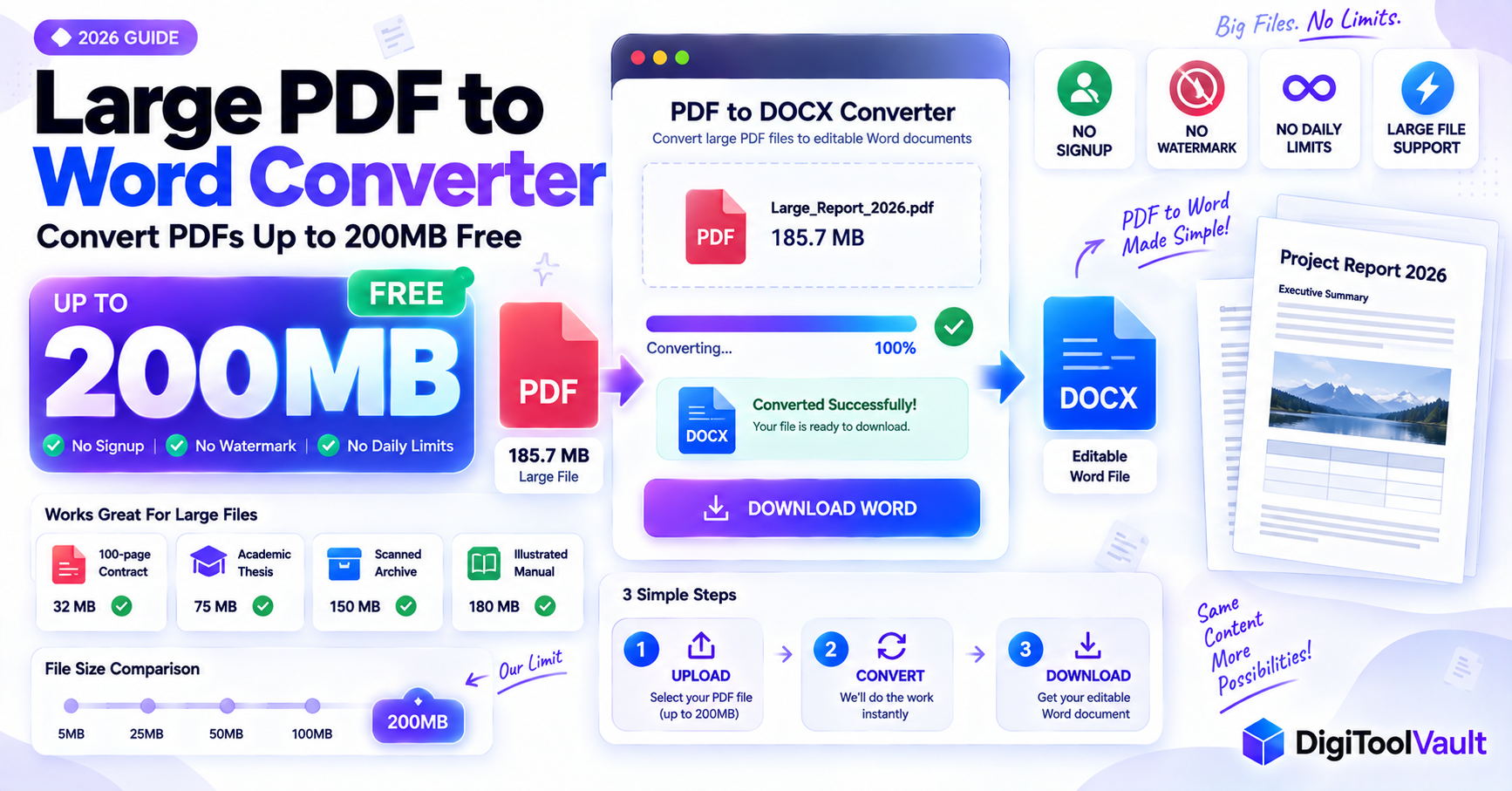
- DigiToolVault supports PDF files up to 200MB free the highest limit among free online tools
- No signup, no watermark, no daily limits convert as many large PDFs as needed
- DigiToolVault's PDF to Word converter handles complex large PDFs including scanned documents, reports with tables, and multi-chapter files
- If your PDF is over 200MB, compress it first or split into sections tips below
Need spreadsheet data instead? Use DigiToolVault's free PDF to Excel bank statement converter to extract bank statement tables into clean Excel rows.
Why Large PDF Files Fail on Other Converters
Every major free PDF converter imposes a file size limit. The limits exist because processing large files costs server resources and the business model of most free converters is to let you hit the limit and then sell you a subscription to go beyond it.
Here is where the most popular free tools cap out:
Smallpdf 5MB Free Limit
Smallpdf's PDF to Word tool free tier limits file sizes to approximately 5MB on the PDF to Word conversion. A typical scanned document with 10 pages of images is already 10-20MB well above this cap. Smallpdf's paid plan removes the size restriction.
iLovePDF 25MB Free Limit
iLovePDF's PDF to Word tool free tier supports files up to approximately 25MB. More generous than Smallpdf, but still blocking for larger reports, multi-chapter documents, and high-resolution scanned archives. iLovePDF also applies an hourly conversion limit on the free plan.
PDFgear 50MB Online Free Limit
PDFgear's online converter supports up to 50MB free. Their desktop app (which requires download and installation) removes the size limit entirely, but that defeats the purpose of a quick online conversion.
Adobe Acrobat Online 100MB with Daily Limit
Adobe Acrobat Online PDF to Word supports files up to 100MB but limits free users to one conversion per day. Adobe's quality is excellent, but one conversion per day makes it impractical for any regular workflow.
Google Docs 50MB Hidden Option
Google Docs is a lesser-known free option: upload your PDF to Google Drive, right-click it, and select "Open with Google Docs." It converts automatically. Google caps this method at 50MB and the output quality on complex layouts is inconsistent.
DigiToolVault 200MB Free Limit
DigiToolVault's PDF to Word converter supports files up to 200MB completely free, no account, no daily limit. This is 40 times Smallpdf's free limit and double Adobe's. For the vast majority of large documents users need to convert, 200MB covers the full file without any splitting or compression required.
How to Convert Large PDF to Word Free
Step 1 Upload Large PDF (up to 200MB)
Go to DigiToolVault's free PDF to Word converter in any browser. Drag and drop your PDF file into the upload area, or click Select Files to browse. Files up to 200MB upload directly no compression step needed before uploading.
For context on what fits within 200MB:
| Document Type | Typical Size | Within 200MB? |
|---|---|---|
| 20-page text report | 1-5MB | ✅ Easily |
| 100-page contract with tables | 10-40MB | ✅ Yes |
| Academic thesis with images | 20-80MB | ✅ Yes |
| 200-page scanned archive | 80-150MB | ✅ Yes |
| Large illustrated PDF manual | 100-180MB | ✅ Yes |
| Very large scanned archive | 200MB+ | ❌ Split first |
Step 2 Convert
Click Convert. DigiToolVault processes large files differently from smaller ones the server allocates more resources and allows a longer processing window. Conversion time scales with file size:
- Under 10MB: typically 5-15 seconds
- 10-50MB: typically 15-45 seconds
- 50-100MB: typically 45-90 seconds
- 100-200MB: typically 1-3 minutes
Keep the browser tab open during conversion. The progress indicator updates throughout. Do not close the tab or refresh during processing.
Step 3 Download Word File
Click Download when processing completes. Your DOCX file saves directly to your device. No email address, no account, no redirect to a pricing page.
Open the DOCX in Microsoft Word, Google Docs, or LibreOffice. For large documents, review the first and last few pages of the output before editing this confirms the conversion completed correctly across the full file. For formatting improvement tips, see our PDF to Word formatting guide. Need the reverse conversion? Use DigiToolVault's free Word to PDF converter.
---
Large PDF File Size Comparison Table
Every tool below was tested or referenced from current 2026 documentation:
| Tool | Free File Limit | Daily Limit | Signup Required | Watermark |
|---|---|---|---|---|
| DigiToolVault | 200MB | None | No | No |
| Adobe Acrobat Online | 100MB | 1/day | No | No |
| PDFgear Online | 50MB | None | No | No |
| Google Docs method | 50MB | None | Yes (Google account) | No |
| iLovePDF | 25MB | ~1-2/hour | No | Some tools |
| PDF Candy | 50MB | 1/hour | No | No |
| Zamzar | 50MB | 2/day | No | No |
| Smallpdf | ~5MB | 2/day | No | Some tools |
For users who need to convert a file between 100MB and 200MB, DigiToolVault is the only free online option that does not require a paid subscription or desktop software installation.
For detailed context on the 200MB advantage, see our PDF to Word 200MB complete guide. Also compare DigiToolVault against competitors in our Smallpdf Alternative Free guide.
Why Large PDFs Are Harder to Convert
Understanding why large PDFs are harder helps you manage expectations for the output and prepare for post-conversion cleanup.
Complex Layouts
Large PDFs are often large precisely because they contain complex content multiple columns, sidebars, headers and footers on every page, pull quotes, diagrams alongside text. The PDF format is designed to preserve exact visual layout regardless of where it is viewed. The DOCX format uses a flow-based layout where content reflows to fit the page. Converting between these two fundamentally different layout models always involves compromises.
Complex layout elements that require manual adjustment after conversion:
- Multi-column page layouts (columns merge into a single column in the DOCX output)
- Text boxes and floating elements (converted to inline content)
- Headers and footers with complex content (simplified or lost in conversion)
- Precise image placement (images appear inline rather than at exact coordinates)
Embedded Images
PDFs with many high-resolution embedded images are large because those images are stored in full quality inside the file. During conversion, these images are extracted and embedded into the DOCX. This works correctly for most images but slows down the conversion process, which is why large image-heavy PDFs take longer to convert than text-heavy PDFs of the same file size.
After conversion, verify that images appear in the expected locations and at readable resolution. Very high-resolution images are preserved but may make the DOCX file significantly larger than average.
Multiple Columns and Tables
Tables in large PDFs financial reports, data sheets, legal schedules are among the most challenging elements to convert accurately. The PDF table is stored as positioned text and lines; the DOCX table is a structured HTML-like element. The converter must infer table structure from visual positioning, which is reliable for simple grids but less reliable for complex nested tables, merged cells, or tables with inconsistent formatting.
For large PDFs with critical table data, compare the converted DOCX tables against the original PDF carefully before using the data professionally.
Tips for Large PDF Conversion
Compress Before Converting
If your PDF is close to or exceeds 200MB, compression can bring it within the limit without losing meaningful quality.
PDF compression works by reducing embedded image resolution and removing metadata. A 250MB PDF with high-resolution images can often compress to 150-180MB with no visible quality loss in the text.
Free PDF compression tools: PDF24 (desktop, no limit), ILovePDF Compress (up to 25MB free online), or PDFsam Enhanced (desktop, free).
What compression does: Reduces image resolution from 300 DPI to 150-200 DPI (still readable), removes duplicate objects, strips embedded metadata. What compression does not do: Remove pages, reduce page count, or affect text content.
Split Large PDF First
For PDFs over 200MB that cannot be compressed sufficiently, splitting into sections and converting each section separately is the most practical approach.
Split your PDF at logical chapter or section boundaries using PDF24 (free, no limit), ILovePDF (free, 25MB), or Smallpdf (2 tasks per day). Convert each section separately using DigiToolVault's converter, then combine the resulting DOCX files in Word by going to Insert → Object → Text from File and selecting each DOCX in order.
Check File Quality After Conversion
For large PDFs, spot-check the output rather than reviewing page by page:
- Check page 1 and the last page conversion errors often appear at the beginning and end of large files
- Search for specific text you know is in the document if Ctrl+F finds it, the conversion worked correctly for that content
- Check any tables in the document by comparing a few values to the original
- Verify image count open Document Properties in Word (File → Info → Properties) to see embedded object count and confirm no images were dropped
---
Large PDF to Word on Mobile
Converting large PDF files on mobile is practical up to approximately 50-100MB beyond that, mobile upload speeds and browser memory can become limiting factors.
iPhone
- Open Safari
- Go to DigiToolVault's PDF to Word converter
- Tap Select Files → choose from Files app, iCloud Drive, or cloud storage
- Tap Convert allow more time for large files (mobile processing is slightly slower than desktop for files over 30MB)
- Tap Download saves to Files app
- Open in Word for iOS or Google Docs
For files over 80MB on mobile, a desktop browser is more reliable. Large file uploads on mobile can time out on slower cellular connections.
Android
- Open Chrome
- Go to DigiToolVault's PDF to Word converter
- Tap Select Files → choose from Downloads or Google Drive
- Tap Convert wait patiently for files over 30MB
- Tap Download → open in Word for Android or Google Docs
Practical tip for mobile: If you need to convert a file over 50MB and are on a mobile connection, wait until you have Wi-Fi large file uploads over cellular can be slow and may interrupt the upload before conversion begins.
Convert your large PDF to Word now DigiToolVault's free PDF to Word Converter → Up to 200MB free. No signup. No daily limits. No watermark.
Related:

