Table of Contents
- TL;DR
- Why Convert Notepad Files to Word?
- How to Convert Notepad to Word Online Free
- Convert Notepad to Word on iPhone
- Convert Notepad to Word on Android
- Convert Notepad to Word on Mac
- Common Problems When Converting Notepad to Word
- FAQ
TL;DR
- A Notepad file (.txt) is plain text to open it in Word with full formatting support, you need to convert it to DOCX first
- Fastest method: Upload your .txt file to DigiToolVault's free TXT to Word converter converts in seconds, no signup, no watermark, up to 200MB free
- No internet method: Open the .txt file directly in Microsoft Word via File → Open, then save as DOCX
- After converting, open in Word and apply your font, headings, and spacing all your text and line breaks carry across intact
Why Convert Notepad Files to Word?
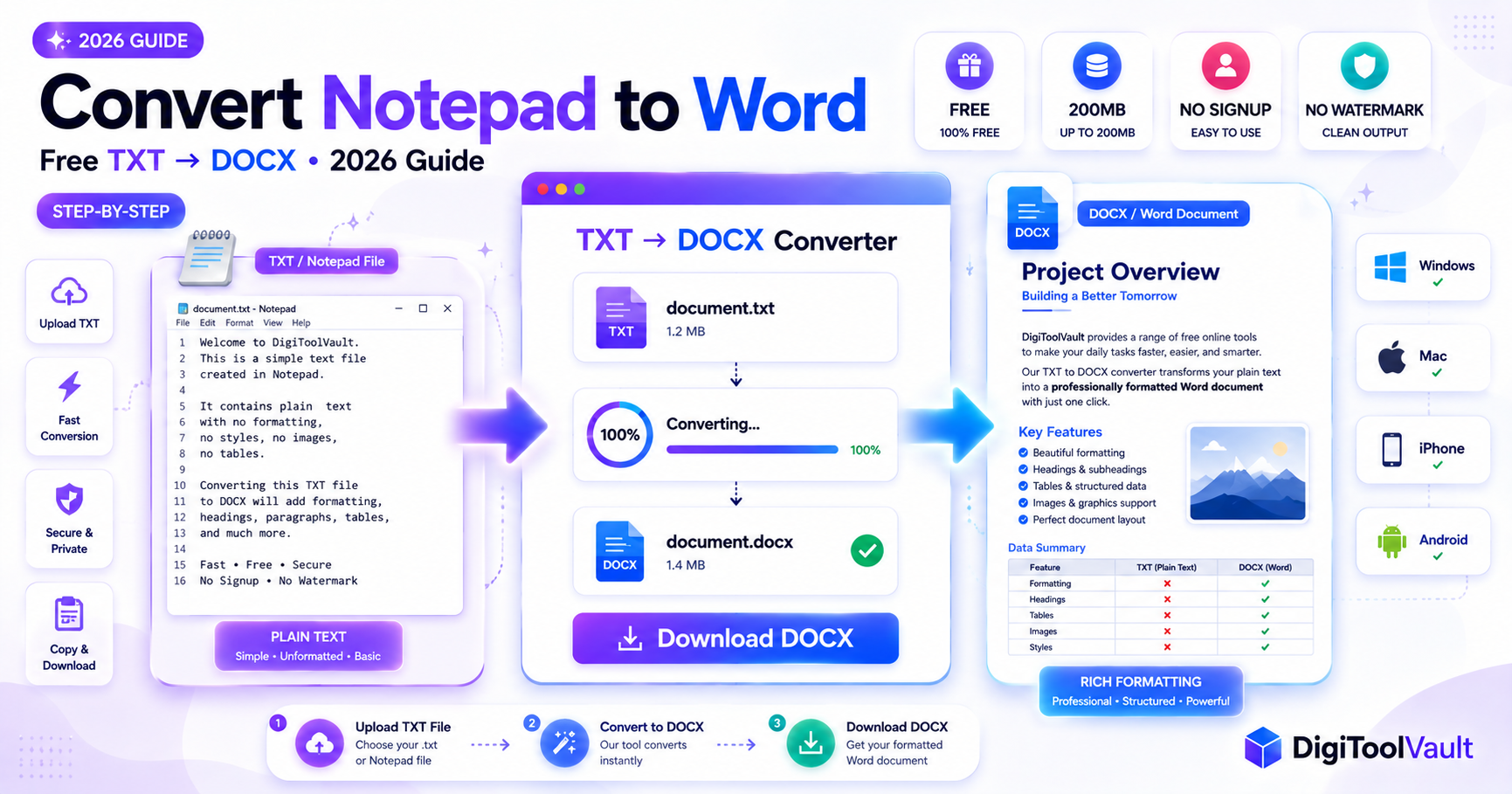
Windows Notepad is a simple text editor included with every version of Microsoft Windows it is the default app that opens when you double-click a .txt file. Notepad saves files in plain text format (.txt), which means no fonts, no bold or italic, no headings, no tables, and no page layout.
Most situations that start in Notepad eventually need to move to Word:
- Submitting documents. Universities, employers, and clients almost universally require .docx format. A Notepad .txt file is often rejected by submission portals, LMS systems (Moodle, Canvas), and email workflows that expect Word documents.
- Sharing with colleagues. A .txt file opened by a colleague on a different system may look different Notepad files can display inconsistently across Windows versions. A DOCX file is consistent everywhere.
- Adding formatting. Once content is in Word, you can apply headings, adjust fonts, add tables, insert images, and use track changes none of which are possible in Notepad.
- Printing professionally. A Notepad file printed directly from Windows has no margins, no page setup, and no headers or footers. A Word document gives you full print control.
How to Convert Notepad to Word Online Free
Method 1 Using DigiToolVault (Fastest)
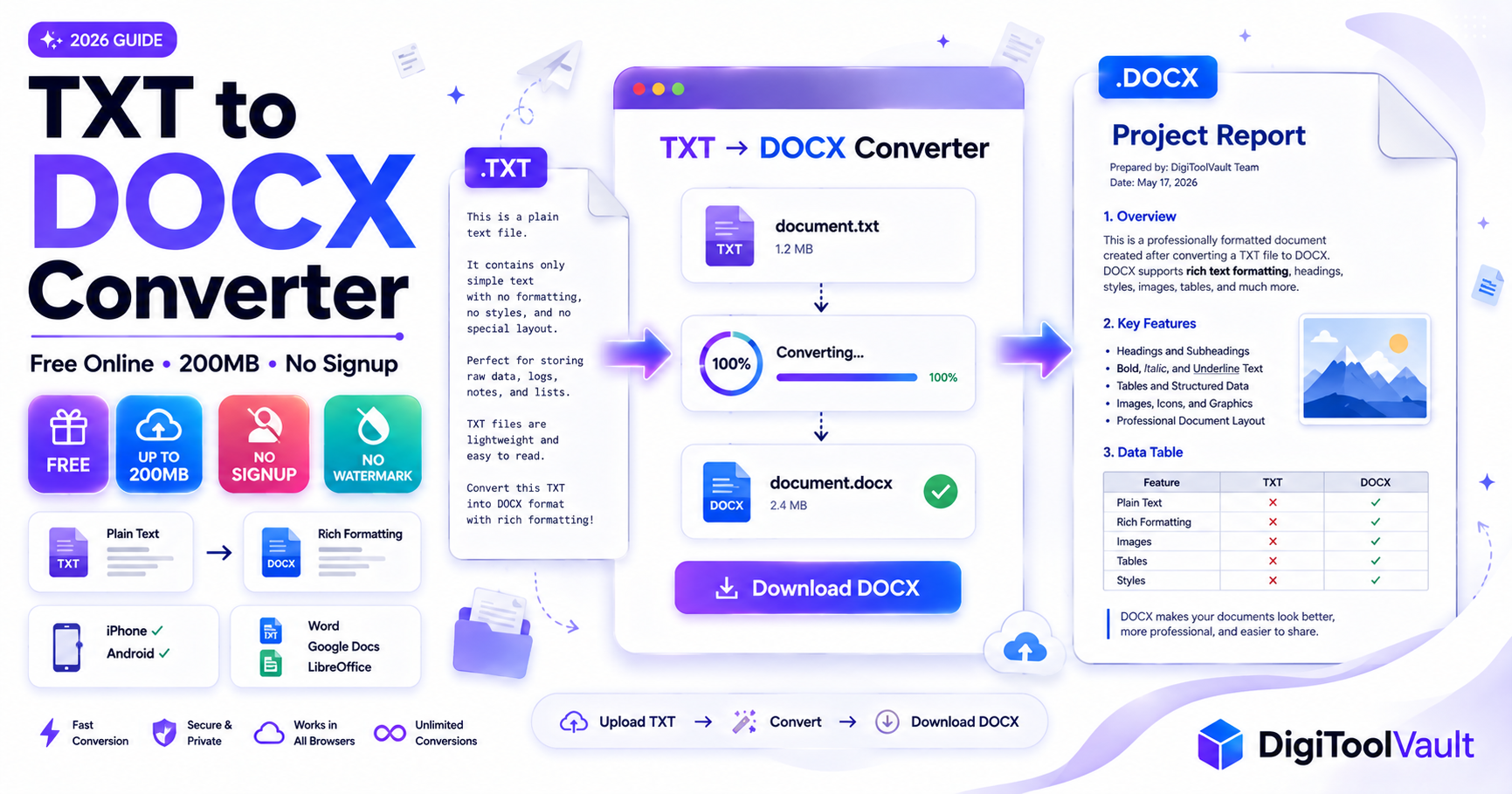
DigiToolVault's free TXT to Word converter converts any Notepad .txt file to DOCX in seconds no account, no watermark, no file size limit tricks.
- Go to digitoolvault.com/tools/txt-to-word
- Drag and drop your Notepad .txt file into the upload area, or click Select Files to browse
- Click Convert processing takes 3-10 seconds for most files
- Click Download to save your DOCX file directly to your computer
- Open the downloaded DOCX in Microsoft Word, Google Docs, or LibreOffice
Your Notepad content all text, all paragraph breaks transfers into the DOCX file intact. Open it in Word and apply your font (Calibri 11pt or Times New Roman 12pt are standard) and any heading styles you need.
Why this method is fastest: No Microsoft Word installation needed, works in any browser, and handles files up to 200MB far larger than any Notepad file you are likely to have.
Method 2 Copy and Paste in Word
If you have Microsoft Word installed, you can copy content directly from Notepad into a new Word document:
- Open your .txt file in Notepad (double-click the file or right-click → Open with → Notepad)
- Select all text with Ctrl+A
- Copy with Ctrl+C
- Open Microsoft Word and create a new blank document
- Paste with Ctrl+V the text appears in Word
- Go to File → Save As, choose a location, and select Word Document (.docx) from the format dropdown
- Click Save
When this works well: For short Notepad files under a few hundred lines. For large files (thousands of lines, log files, data exports), the online converter is faster and more reliable.
Method 3 Open TXT in Word Directly
You can open a Notepad file directly in Word by right-clicking the .txt file and selecting Open With → Word. Microsoft Word can open plain text files natively no conversion step needed.
- Find your .txt file in Windows Explorer or your Desktop
- Right-click the file
- Select Open with → Microsoft Word (if Word is not in the list, click "Choose another app" and find Word)
- Word opens the file and may show an encoding dialog leave it at Windows (Default) or UTF-8 and click OK
- The text appears in Word as an editable document
- Go to File → Save As → Word Document (.docx) → Save
According to Microsoft's documentation, Word handles plain text file encoding automatically for most standard files. This method requires Microsoft Word to be installed if you do not have Word, use Method 1 instead.
Convert Notepad to Word on iPhone
iPhones do not have Notepad that is a Windows application. But if you have a .txt file on your iPhone (received by email, saved to Files, or synced from a computer), you can convert it to DOCX without any app download.
- Open Safari on your iPhone
- Go to digitoolvault.com/tools/txt-to-word
- Tap Select Files
- Choose your .txt file from the Files app check On My iPhone, iCloud Drive, or any connected cloud storage (Google Drive, Dropbox, OneDrive)
- Tap Convert
- Tap Download the DOCX saves to your Files app → Downloads folder
- Tap the downloaded file to open it in Microsoft Word for iOS, Google Docs, or Apple Pages
The entire process runs in Safari no app installation required. Your text and paragraph structure carry across to the DOCX file intact.
Convert Notepad to Word on Android
Android also does not include Windows Notepad, but .txt files can arrive on Android via email, WhatsApp, Google Drive, and similar apps. To convert on Android:
- Open Chrome (or any browser) on your Android device
- Go to digitoolvault.com/tools/txt-to-word
- Tap Select Files
- Choose your .txt file from your Downloads folder, Files app, Google Drive, or Dropbox
- Tap Convert
- Tap Download the DOCX saves to your Downloads folder
- Open the file in Microsoft Word for Android, Google Docs, or WPS Office
No account needed, no app to install. The DOCX file opens immediately in any document editor on your Android device.
Convert Notepad to Word on Mac
Macs use TextEdit as their equivalent of Windows Notepad both are simple plain text editors. If you have a .txt file on your Mac (whether created in TextEdit or received from a Windows machine that used Notepad), there are three methods:
Option A DigiToolVault Online Converter (Recommended)
- Open Safari or Chrome on your Mac
- Go to digitoolvault.com/tools/txt-to-word
- Upload your .txt file drag and drop or click Select Files
- Click Convert, then Download
- Open the DOCX in Microsoft Word for Mac or Google Docs
Works in any browser, no installation required.
Option B TextEdit to DOCX
TXT files can be opened with any text-editing application, including Mac's built-in TextEdit:
- Open your .txt file in TextEdit
- Go to Format → Make Rich Text in the menu bar
- Go to File → Save As
- From the format dropdown, choose Word Format (.docx)
- Save and open the file in Word or Google Docs
Note: TextEdit's DOCX output is basic the file is valid but minimal in formatting. For cleaner output, use Option A.
Option C Microsoft Word for Mac
Follow the same steps as Method 3 above (Open TXT directly in Word) Word for Mac handles .txt files exactly the same way as Word for Windows.
Common Problems When Converting Notepad to Word
Text Formatting Lost
Problem: After conversion, all text looks the same no headings, no bold, no different sizes.
Why it happens: Notepad .txt files have no formatting information. Bold text in Notepad looks bold on screen because Notepad applies a visual style but that style is not saved in the file. The .txt file contains only characters.
Fix: After converting, open the DOCX in Word. Select all with Ctrl+A, apply a font (Calibri 11pt is the Word default). Then manually apply Heading 1, Heading 2, and body paragraph styles using the Styles panel in the Home tab. This takes 2-5 minutes for a typical document.
Special Characters Not Displaying
Problem: After converting, some characters appear as question marks (?), boxes (□), or garbled symbols.
Why it happens: The .txt file was saved in a non-UTF-8 encoding typically Windows-1252 (ANSI) on older Windows systems. When the converter reads it, it interprets the bytes differently and produces incorrect characters.
Fix: Re-save the .txt file in UTF-8 encoding before converting:
- On Windows: Open the file in Notepad → File → Save As → at the bottom of the dialog, change Encoding from ANSI to UTF-8 → Save. Then convert the re-saved file.
- On Mac: Open in TextEdit → File → Save As → set Plain Text Encoding to Unicode (UTF-8) → Save.
The Unicode UTF-8 standard supports every character in every language re-saving in UTF-8 before converting resolves virtually all special character issues.
Line Breaks Missing
Problem: After converting, all the text appears as one long paragraph instead of separate lines.
Why it happens: There are two types of line endings in text files: Windows-style (CRLF carriage return + line feed) and Unix-style (LF line feed only). Most converters handle both correctly, but some tools only process one type, collapsing the other into spaces.
Fix using DigiToolVault: DigiToolVault's converter handles both CRLF and LF line endings if you experience missing line breaks with another tool, switching to DigiToolVault typically resolves it.
Manual fix: Open the DOCX in Word. Use Find & Replace (Ctrl+H). In the Find field, type `^l` (manual line break in Word's find syntax). In the Replace field, type `^p` (paragraph break). Click Replace All this converts any remaining soft line endings to proper Word paragraph breaks.
For more on TXT vs DOCX formats, see our TXT to DOCX Converter Guide and How to Convert TXT to Word. Need PDF instead? Try the PDF to Word Converter.
FAQ
How do I convert a Notepad file to Word for free? Upload your Notepad .txt file to DigiToolVault's free TXT to Word converter. Click Convert and download the DOCX no account required, no watermark, files up to 200MB. Alternatively, right-click your .txt file, select Open With → Microsoft Word, and save as DOCX from inside Word.
What is the difference between a Notepad file and a Word document? A Notepad file (.txt) stores only plain characters and line breaks with no formatting no fonts, no bold, no headings, no tables. A Word document (.docx) stores text inside a structured XML format that supports full rich text formatting, paragraph styles, tables, images, and all Microsoft Word features. DOCX is the standard format accepted by institutions, businesses, and professional workflows.
Can I convert Notepad to Word without Microsoft Word installed? Yes. DigiToolVault's online converter converts TXT to DOCX entirely in your browser no Word installation needed. The converted DOCX opens in Google Docs, LibreOffice, Apple Pages, or WPS Office, so you do not need Microsoft Word at any point in the process.
Why does my converted Notepad file look wrong in Word? The three most common causes are: missing formatting (Notepad saves no formatting apply it manually in Word after conversion), garbled special characters (re-save the .txt as UTF-8 before converting), and missing line breaks (use a converter that handles both CRLF and LF line endings DigiToolVault handles both correctly).
How do I convert Notepad to Word on Mac? Open Safari, go to DigiToolVault's TXT to Word converter, upload your .txt file, convert, and download the DOCX. Alternatively, open the .txt in TextEdit → Format → Make Rich Text → File → Save As → Word Format (.docx). Or open directly in Microsoft Word for Mac via File → Open.
Is there a maximum file size for converting Notepad to Word? DigiToolVault supports .txt files up to 200MB free with no account required. Plain text files are very small a 100,000-word Notepad document is typically under 1MB so the 200MB limit covers every practical Notepad file you are likely to encounter, including large log files or data exports.
Will converting Notepad to Word preserve my text? Yes. All text content and paragraph line breaks from your Notepad file carry across to the DOCX file during conversion. What does not transfer is formatting because Notepad files contain none. Bold, headings, fonts, and spacing need to be applied manually in Word after conversion.
Can I convert multiple Notepad files to Word at once? DigiToolVault's converter currently handles one file at a time. Because Notepad files are very small and conversion takes only seconds, converting several files in sequence is fast and practical. There are no daily limits convert as many files as you need.
Convert your Notepad file to Word now DigiToolVault's free TXT to Word Converter. No signup. No watermark. Up to 200MB free. Works on Windows, Mac, iPhone, and Android.