Table of Contents
- TL;DR
- What Is a Text File to Word Converter?
- Types of Text Files You Can Convert to Word
- How to Convert a Text File to Word Free Online
- How to Convert Text to Word Document on Windows
- How to Convert Text to Word Document on Mac
- How to Convert Text to Word on iPhone and Android
- What Happens to Formatting When Converting Text to Word?
- Text File to Word Common Questions
- FAQ
TL;DR
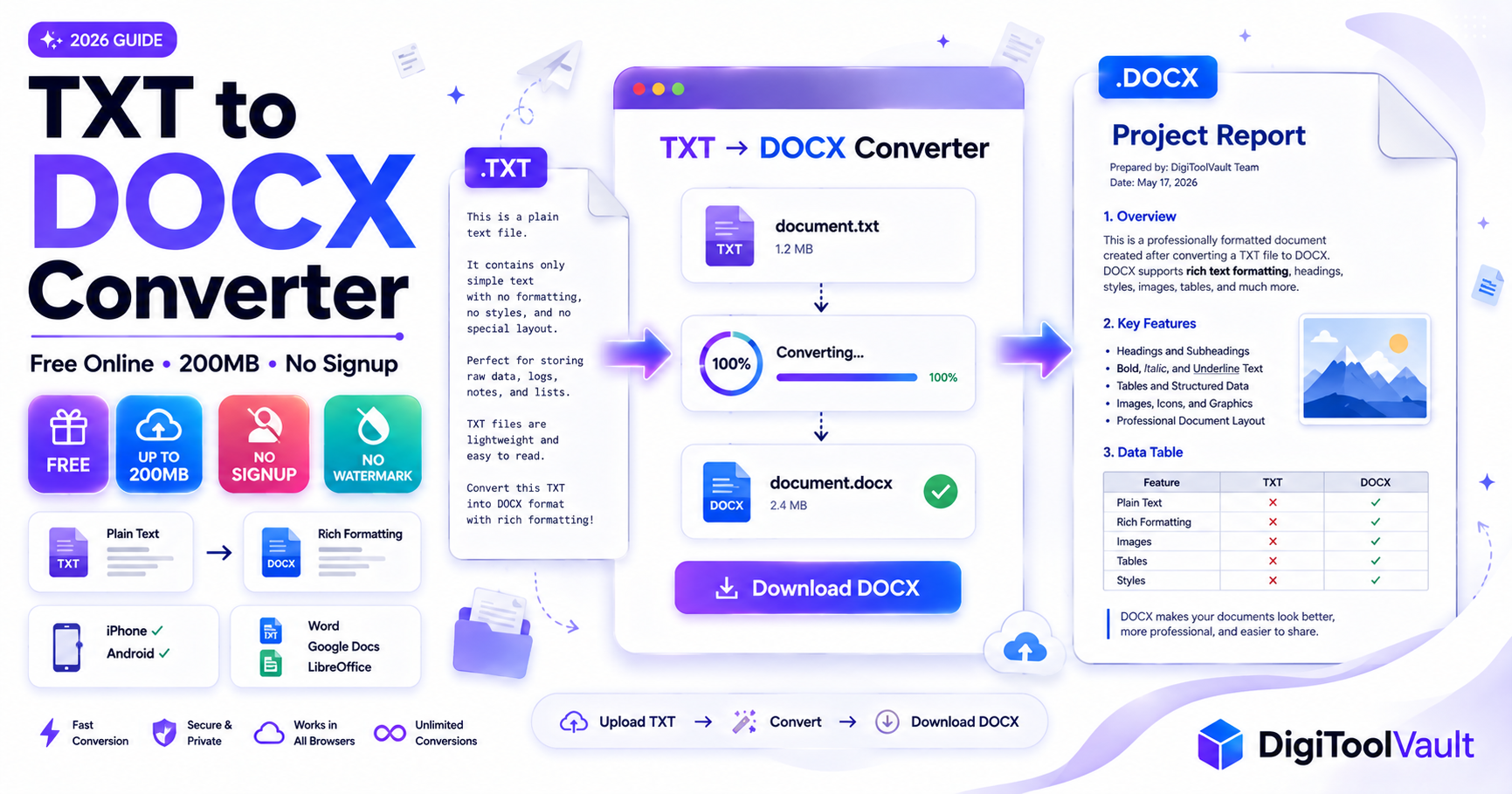
- A text file (.txt) contains only plain characters converting it to Word (.docx) gives you full formatting, fonts, tables, and professional document support
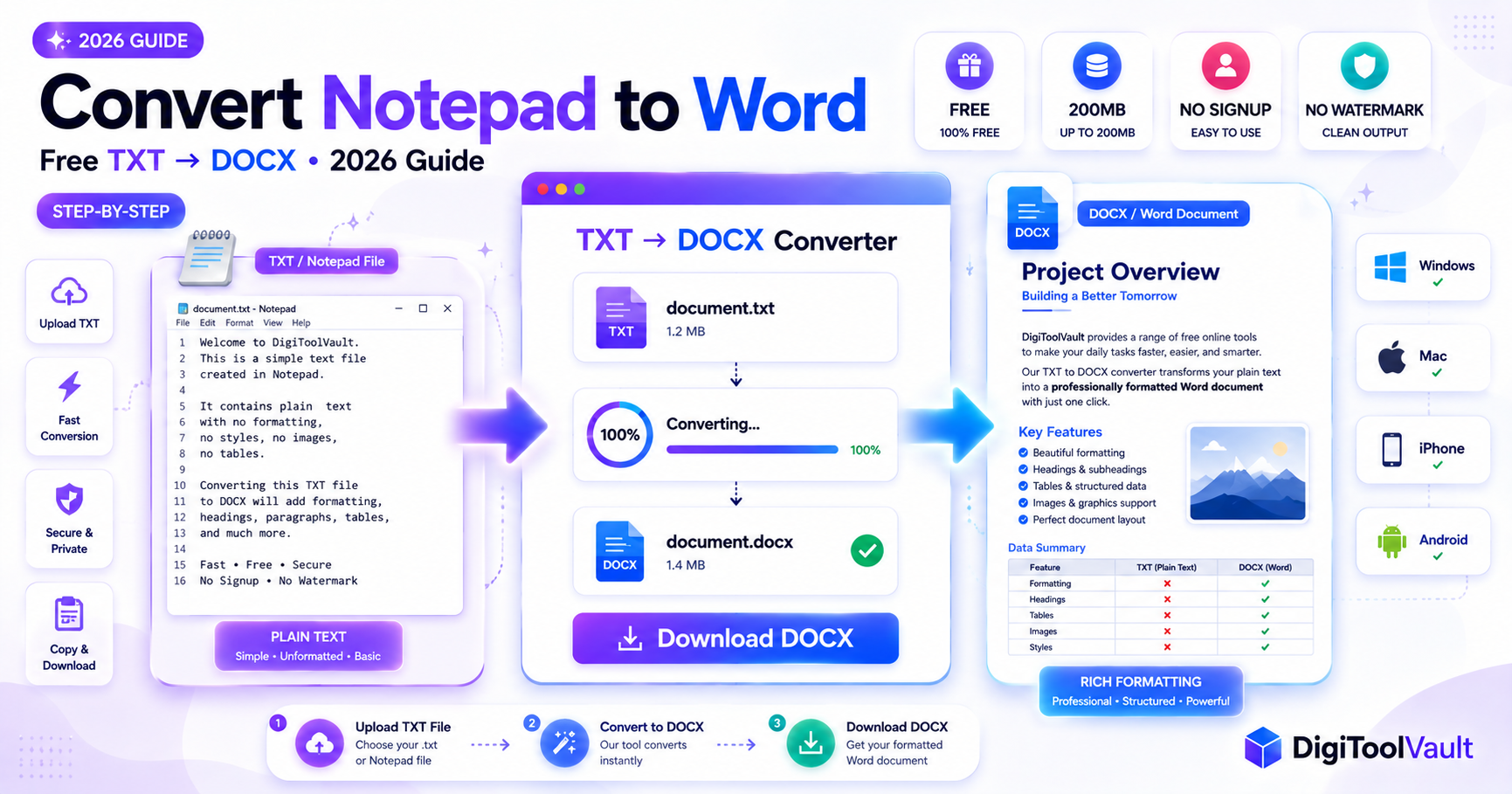
- DigiToolVault's free text to Word converter converts any .txt or plain text file to DOCX in seconds no signup, no watermark, up to 200MB
- Supports Windows, Mac, iPhone, and Android works in any browser with no software required
- After converting, open in Word or Google Docs and apply fonts, headings, and spacing to finish the document
What Is a Text File to Word Converter?
A text file to Word converter is a tool that takes a plain text file and transforms it into a Microsoft Word document (.docx). The conversion changes the file's internal structure from raw characters (what .txt files store) to the XML-based format that Word, Google Docs, LibreOffice, and Apple Pages all understand natively.
Plain text files are created by Notepad (Windows), TextEdit (Mac), terminal editors, code editors like VS Code and Sublime Text, and any application that exports raw data as text. They are lightweight and universally readable but they cannot hold any formatting information, which makes them unsuitable for professional documents, submissions, and sharing.
Converting a text file to Word gives you:
- Full font control choose any typeface, size, and weight
- Paragraph styles Heading 1, Heading 2, body text, captions
- Tables add structured data layouts
- Headers and footers page numbers, document titles
- Track changes collaborate with comments and edits
- Universal compatibility DOCX opens on every device and platform
According to Microsoft's documentation on supported Word file formats, Word can open .txt files directly and save them as DOCX which is the simplest single-program method. For users without Word installed, an online converter is the fastest alternative.
Types of Text Files You Can Convert to Word
"Text file" is a broad term. Different types of text-based files convert to Word with different results:
| File Type | Extension | What It Contains | Converts to Word |
|---|---|---|---|
| Plain text | .txt | Raw characters only | ✅ Full text, line breaks preserved |
| Markdown | .md | Text with markdown syntax (#, , -, etc.) | ✅ Text preserved, markdown syntax visible as plain text |
| Rich Text Format | .rtf | Text with basic formatting | ✅ Formatting preserved Word opens RTF natively |
| CSV data file | .csv | Comma-separated values | ⚠️ Text preserved format as table in Word after |
| Log file | .log | System output text | ✅ Full text preserved |
| Source code | .py, .js, .html | Code as text | ✅ Code converts as plain text |
| ODT (OpenDocument) | .odt | LibreOffice text document | ✅ Full formatting preserved |
The most common conversion is plain .txt to .docx which is exactly what DigiToolVault's TXT to Word converter handles. Upload your .txt file, convert, and download a clean DOCX in seconds.
How to Convert a Text File to Word Free Online
The fastest method works on Windows, Mac, iPhone, and Android without any software installation.
Step 1 Go to the converter
Open DigiToolVault's free text to Word converter in any browser. No account creation, no email signup, no CAPTCHA.
Step 2 Upload your text file
Drag and drop your .txt file into the upload area, or click Select Files to browse from your computer, Downloads folder, or cloud storage. Files up to 200MB are supported covering everything from a short paragraph to a large data export or log file.
Step 3 Convert
Click Convert. The tool processes your file. For standard text files, conversion completes in 3 to 10 seconds. The output format is DOCX the standard Word format compatible with Microsoft Word 2007 and all later versions, Google Docs, and LibreOffice.
Step 4 Download your Word file
Click Download to save your DOCX file directly to your device. No redirect to a paywall, no email required. The file downloads immediately and is ready to open.
Step 5 Format in Word
Open the downloaded DOCX in Word or Google Docs. Apply a font (select all with Ctrl+A, then choose Calibri 11pt or Times New Roman 12pt), apply heading styles using the Styles panel, and adjust spacing. Your text content and line breaks are fully preserved formatting takes under two minutes.
How to Convert Text to Word Document on Windows
Windows users have three methods available:
Method 1 Online Converter (No Word Required)
Follow the five steps above using DigiToolVault's converter. Works in Edge, Chrome, and Firefox no software needed.
Method 2 Open Directly in Microsoft Word
- Open File Explorer and locate your .txt file
- Right-click the file → Open with → Microsoft Word
- Word opens the file and may show an encoding dialog leave at Windows (Default) or UTF-8 and click OK
- The text appears as an editable Word document
- Go to File → Save As → Word Document (.docx) → Save
Method 3 Drag into Word
- Open Microsoft Word to a blank document
- Open File Explorer alongside Word
- Drag your .txt file from File Explorer directly into the Word window
- Word asks how to handle the file select Insert as Text to paste content, or use File → Open for a full conversion
- Save as DOCX when done
How to Convert Text to Word Document on Mac
Method 1 Online Converter (Recommended)
Open Safari or Chrome, go to digitoolvault.com/tools/txt-to-word, upload your .txt file, convert, and download. Works the same on Mac as on Windows.
Method 2 TextEdit to DOCX
Mac's built-in text editor TextEdit can export plain text as a basic Word document:
- Open your .txt file in TextEdit
- Go to Format → Make Rich Text in the menu bar this switches TextEdit from plain text mode to rich text mode
- Go to File → Save As
- From the format dropdown, select Word Format (.docx)
- Click Save
TextEdit's output is a valid DOCX file but minimal in structure no paragraph styles are applied. Use the online converter for cleaner output.
Method 3 Microsoft Word for Mac
Open Word for Mac → File → Open → select your .txt file → Word opens it directly → File → Save As → Word Document (.docx). Identical to the Windows process.
How to Convert Text to Word on iPhone and Android
iPhone
- Open Safari
- Go to digitoolvault.com/tools/txt-to-word
- Tap Select Files
- Choose your .txt file from the Files app iCloud Drive, On My iPhone, Google Drive, or Dropbox
- Tap Convert then Download
- The DOCX saves to Files → Downloads and opens in Word for iOS, Google Docs, or Apple Pages
Android
- Open Chrome
- Go to digitoolvault.com/tools/txt-to-word
- Tap Select Files
- Choose your .txt file from Downloads, Google Drive, or any connected storage
- Tap Convert then Download
- Open in Microsoft Word for Android, Google Docs, or WPS Office
No app installation required on either platform. The full conversion runs in the browser.
What Happens to Formatting When Converting Text to Word?
This is the most important thing to understand before converting:
Text files contain no formatting. A .txt file stores characters and line breaks nothing else. Bold text typed in Notepad looks bold on screen because Notepad applies a visual style to the editor display. That style is not saved in the file. Neither is the font, the size, the spacing, or any other visual attribute.
What the converter preserves:
- All text content every word, number, and symbol
- Line breaks each becomes a paragraph break in the DOCX
- Spacing between paragraphs preserved as vertical spacing between paragraphs
- Special characters preserved if the .txt file is saved in UTF-8 encoding
What the converter cannot preserve (because it does not exist in the source file):
- Bold or italic text
- Heading hierarchy
- Font choice and size
- Margins and page setup
- Tables (plain text has no table structure)
- Images
What to do after converting:
Open the DOCX in Word or Google Docs and in two minutes:
- Select all (Ctrl+A) → apply a font and size
- Select section titles → apply Heading 1 or Heading 2 from the Styles panel
- Set line spacing to 1.15 or 1.5 in Paragraph settings
- Add any tables, images, or headers needed
The text-to-Word conversion gives you your content in an editable format. Formatting is applied by you inside Word afterward which takes far less time than re-typing the document.
For a full TXT vs DOCX comparison, see our TXT to DOCX Converter Guide. If your file came from Notepad specifically, see Convert Notepad to Word.
Text File to Word Common Questions
Can I convert a text file to Word without Microsoft Word?
Yes completely. DigiToolVault's converter runs in your browser and requires no software installation. The DOCX output opens in Google Docs, LibreOffice, Apple Pages, WPS Office, or any DOCX-compatible application. You never need Microsoft Word at any point.
What if my text file has garbled characters after conversion?
This is an encoding issue. Re-save your .txt file in UTF-8 encoding before converting:
- Windows: Open in Notepad → File → Save As → change Encoding to UTF-8 → Save
- Mac: Open in TextEdit → File → Save As → set Plain Text Encoding to Unicode (UTF-8) → Save
The Unicode UTF-8 standard supports every language and special character re-saving in UTF-8 fixes virtually all garbled character issues.
Can I convert a large text file to Word?
DigiToolVault supports text files up to 200MB free with no account required. Plain text files are very small even at large word counts a 500,000-word document is typically under 3MB as a .txt file. The 200MB ceiling covers even the largest log files, database exports, and concatenated data outputs.
Is the converted Word file compatible with Google Docs?
Yes. The output DOCX format is fully compatible with Google Docs, Microsoft Word, LibreOffice, Apple Pages, and WPS Office. DOCX is the standard document format supported across all major word processing applications your converted file opens without issues on any of these platforms.
Convert your text file to Word now DigiToolVault's free TXT to Word Converter. No signup. No watermark. Up to 200MB free. Works on any device.
Also need to convert a PDF? Try DigiToolVault's PDF to Word Converter up to 200MB, no signup. Or read our guide: PDF to Word 200MB Free.