Table of Contents
- Quick Answer
- How to Convert TXT to Word Online Free
- Why Convert TXT to Word?
- Convert TXT to Word 3 Methods Compared
- Convert TXT to Word Free vs Paid Tools
- How to Convert TXT to Word on Different Devices
- How to Convert Word to TXT (Reverse)
- Common TXT to Word Conversion Problems
- FAQ
Quick Answer
Fastest method 3 steps:
- Go to digitoolvault.com/tools/txt-to-word
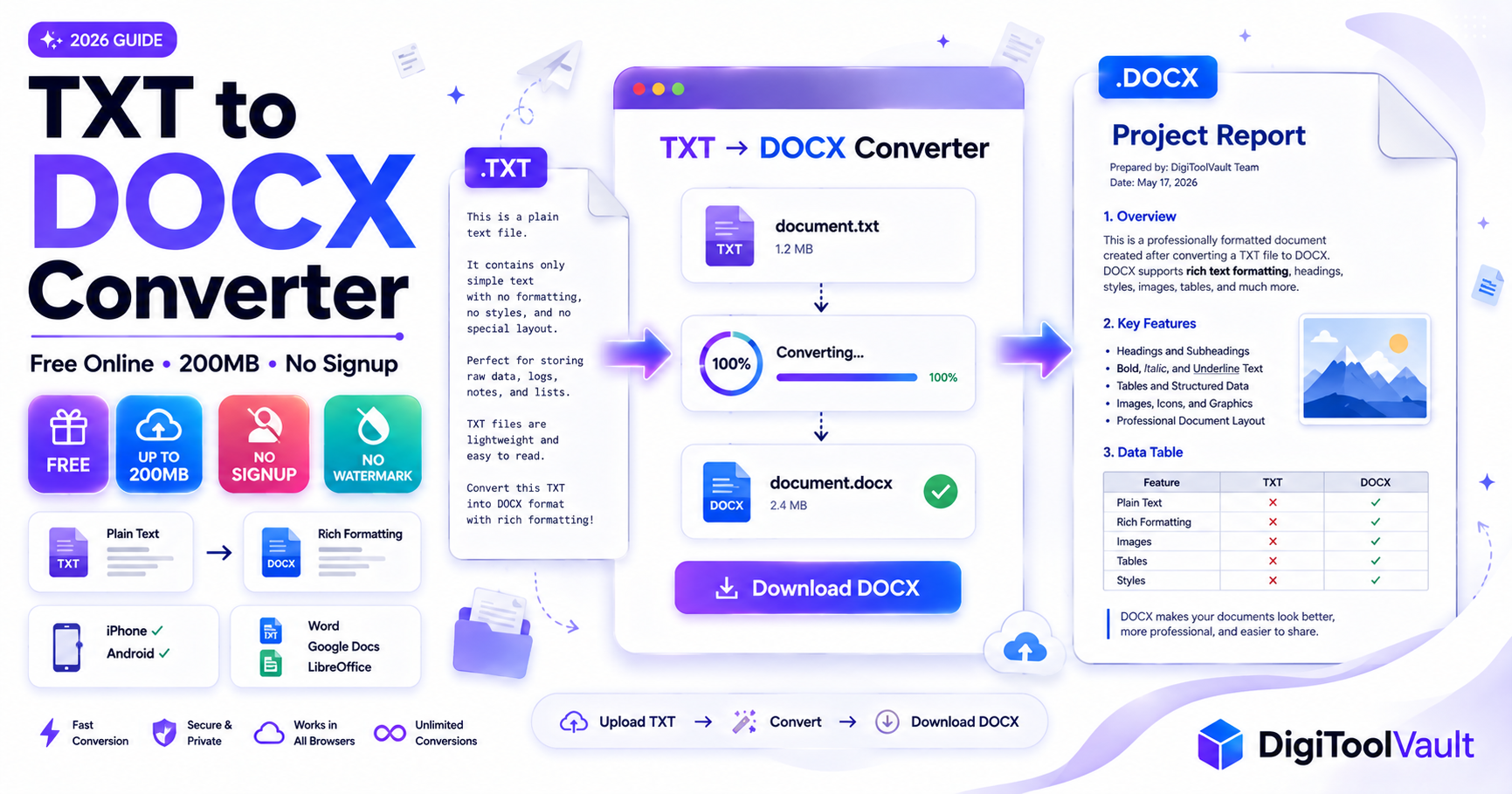
- Upload your TXT file (up to 200MB)
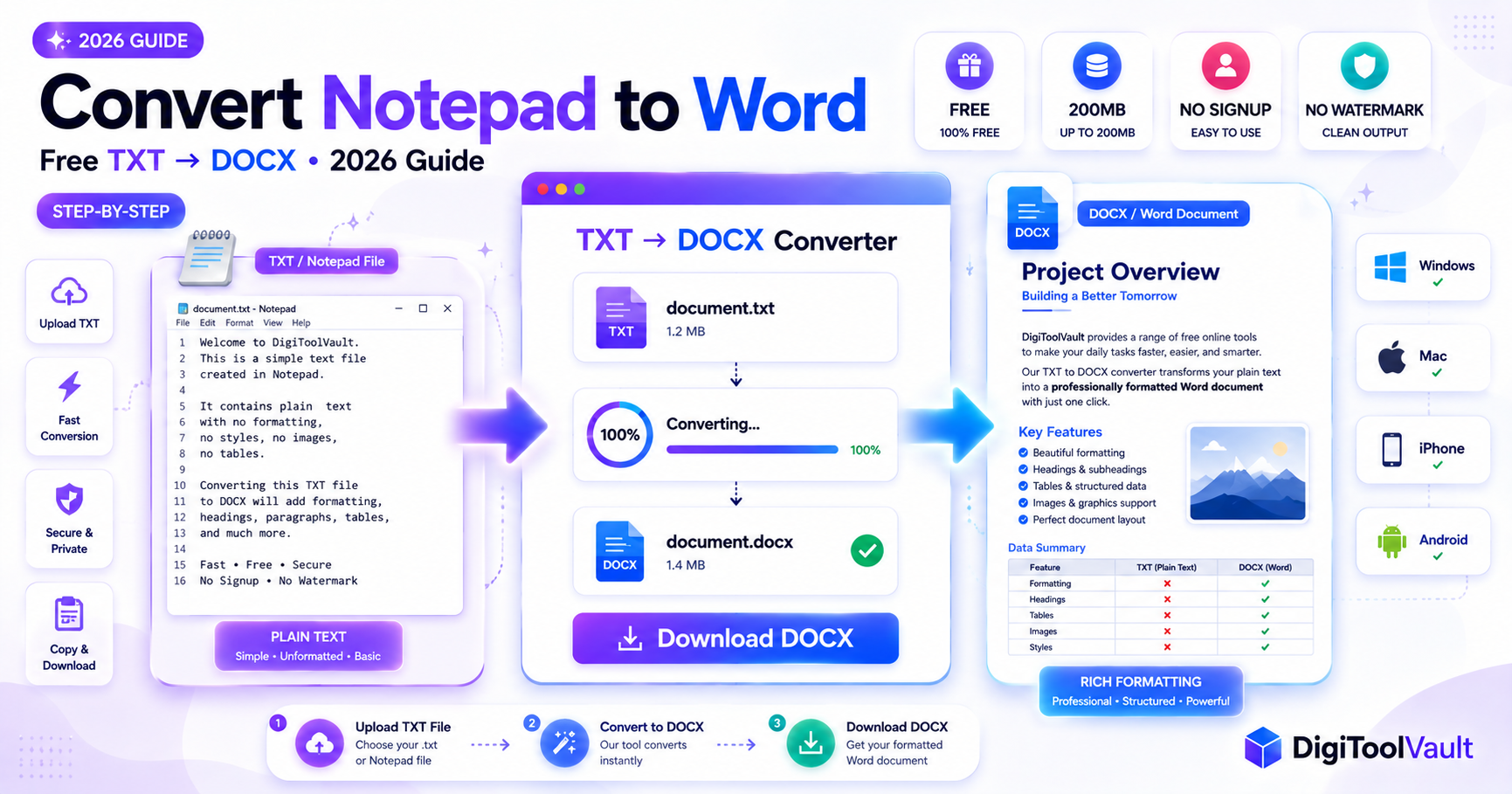
- Click Convert → Download your DOCX
No signup. No watermark. No daily limits. Takes under 10 seconds.
How to Convert TXT to Word Online Free
Step 1 Go to DigiToolVault TXT to Word
Open DigiToolVault's free TXT to Word converter in any browser. No account required the tool is available immediately on arrival. Works in Chrome, Safari, Edge, Firefox, and any modern browser on any device.
Step 2 Upload Your TXT File
Drag and drop your .txt file directly into the upload area, or click Select Files to browse from your device. You can upload from your computer's local storage, Downloads folder, desktop, or any connected cloud storage. The converter accepts TXT files up to 200MB the largest free file size limit available among online TXT converters in 2026.
Most TXT files are very small. A 10,000-word text document is typically under 100KB. Even a 1 million-word text file is rarely more than 10MB. The 200MB ceiling means you will never hit a file size limit on any practical text document.
Step 3 Click Convert
Click the Convert button. The tool processes your file immediately in your browser. For standard TXT files, conversion completes in 3 to 10 seconds. The output format is DOCX the standard Word format compatible with Microsoft Word 2007 and all later versions, Google Docs, and LibreOffice.
Step 4 Download Your Word File
When processing completes, click Download to save your DOCX file. It downloads directly to your device no email address, no redirect, no paywall. Open the downloaded DOCX in Microsoft Word, Google Docs, or LibreOffice to add formatting, headings, and styling.
Why Convert TXT to Word?
TXT vs Word Key Differences
Understanding the difference explains why conversion is necessary:
| Feature | TXT (.txt) | Word (.docx) |
|---|---|---|
| Bold / italic | ❌ | ✅ |
| Headings | ❌ | ✅ |
| Tables | ❌ | ✅ |
| Images | ❌ | ✅ |
| Page layout | ❌ | ✅ |
| Track changes | ❌ | ✅ |
| Opens in Word | ⚠️ Plain text only | ✅ Native format |
| Accepted for submission | Rarely | ✅ Standard everywhere |
| File size | Very small | Slightly larger |
A TXT file stores raw characters and line breaks nothing else. According to Microsoft's documentation on Word file formats, Word can open .txt files directly, but the file must then be saved as DOCX to gain full Word formatting support.
When You Need DOCX Format
You need to convert TXT to Word when:
- A university, employer, or institution requires document submissions in .docx format
- You are sharing content with colleagues who will add formatting, comments, or track changes
- You need to apply professional formatting headings, fonts, tables, margins
- You are submitting to an LMS portal (Moodle, Canvas, Blackboard) that only accepts Word format
- According to Google Docs file import documentation, .docx files import with full editing support TXT files import as plain text without the same formatting capabilities
Convert TXT to Word 3 Methods Compared
Method 1 Online Converter (Fastest)
Best for: Everyone. No software needed, works on any device.
DigiToolVault's TXT to Word converter converts in under 10 seconds with no account, no watermark, and support for files up to 200MB. This is the fastest method and the only one that requires no installed software.
Steps: Upload → Convert → Download. Done.
Method 2 Microsoft Word Directly
Best for: Users who already have Microsoft Word installed.
- Right-click your .txt file in Windows Explorer → Open with → Microsoft Word
- Word opens the file (confirm encoding dialog if it appears)
- Go to File → Save As → select Word Document (.docx) → Save
No conversion tool needed Word handles TXT files natively. The limitation: requires Microsoft Word installed on your device.
Method 3 Copy and Paste (Slowest)
Best for: Short documents only.
- Open your .txt file in Notepad or any text editor
- Select all with Ctrl+A and copy with Ctrl+C
- Open Microsoft Word → new blank document
- Paste with Ctrl+V
- Save as DOCX
Works without any tool but impractical for files over a few hundred lines. Large documents become unwieldy and may lose spacing on paste. Use Method 1 for anything substantial.
Convert TXT to Word Free vs Paid Tools
Why Free Tools Are Better in 2026
The paid TXT to Word conversion market has essentially collapsed. In 2026, free tools offer everything that paid tools once locked behind subscriptions:
| Feature | DigiToolVault (Free) | Typical Paid Tools |
|---|---|---|
| File size limit | 200MB | Often less without upsell |
| Daily conversion limit | None | Often capped |
| Watermark on output | No | Depends on tool |
| Signup required | No | Usually yes |
| Speed | Under 10 seconds | Similar |
| Output quality | DOCX with full Word support | DOCX with full Word support |
Some newer converters process files entirely in your browser, so your text is never uploaded to a server which is an additional privacy benefit for sensitive documents. DigiToolVault processes files for the conversion purpose only and does not store your content beyond the session.
The only meaningful advantage of paid TXT converters in 2026 is batch processing converting hundreds of files simultaneously. For individual file conversion, free tools are equivalent or better.
How to Convert TXT to Word on Different Devices
Convert TXT to Word on Windows
Online method (no Word required): Open Chrome or Edge → go to DigiToolVault's TXT to Word converter → upload your .txt file → Convert → Download.
Using Microsoft Word: Right-click the .txt file → Open with → Word → File → Save As → Word Document (.docx).
Convert TXT to Word on Mac
Online method: Open Safari or Chrome → go to DigiToolVault's TXT to Word converter → upload → Convert → Download.
Using TextEdit: Open .txt in TextEdit → Format → Make Rich Text → File → Save As → Word Format (.docx). TextEdit's output is basic but valid.
Using Microsoft Word for Mac: File → Open → select .txt file → File → Save As → Word Document (.docx).
Convert TXT to Word on iPhone
- Open Safari on your iPhone
- Go to digitoolvault.com/tools/txt-to-word
- Tap Select Files → choose your .txt from Files app, iCloud, Google Drive, or Dropbox
- Tap Convert → Download
- DOCX saves to Files → Downloads → open in Word for iOS, Google Docs, or Apple Pages
No app download required. Entire conversion runs in Safari.
Convert TXT to Word on Android
- Open Chrome on Android
- Go to digitoolvault.com/tools/txt-to-word
- Tap Select Files → choose .txt from Downloads or Google Drive
- Tap Convert → Download
- DOCX saves to Downloads → open in Word for Android, Google Docs, or WPS Office
How to Convert Word to TXT (Reverse)
Why Convert Word Back to TXT
Sometimes you need to go the other direction stripping all formatting from a Word document to get clean plain text:
- Feeding document content into a script, code, or AI tool that reads plain text
- Removing all formatting to start clean with a fresh document structure
- Reducing file size significantly (a 2MB DOCX can become under 100KB as TXT)
- Extracting text content from a formatted document for reuse elsewhere
- Some legacy systems or command-line tools only accept plain text input
Word to TXT Converter Free
DigiToolVault's free Word to TXT converter converts DOCX back to plain text in seconds same process as above in reverse. Upload your .docx file, convert, and download the clean .txt output. No account needed.
Alternatively, within Microsoft Word: File → Save As → Browse → change the file type to Plain Text (.txt) → Save. Word will ask about encoding choose UTF-8 for maximum character compatibility per the Unicode UTF-8 FAQ.
Common TXT to Word Conversion Problems
Text Formatting Lost
Why it happens: TXT files contain no formatting. Bold in Notepad is a visual display setting it is not saved in the file. The converter has nothing to transfer.
Fix: After downloading the DOCX, open in Word. Select all (Ctrl+A) → apply Calibri 11pt. Then select section titles → apply Heading 1 or Heading 2 from the Styles panel. Apply bullet points to lists via the Home tab. This takes 2-5 minutes for most documents.
Special Characters Not Displaying
Why it happens: The TXT file was saved in an older encoding (Windows-1252/ANSI) instead of UTF-8. The converter reads the bytes differently and produces garbled output.
Fix: Re-save in UTF-8 before converting:
- Windows: Open in Notepad → File → Save As → change Encoding to UTF-8 → Save
- Mac: Open in TextEdit → File → Save As → set encoding to Unicode (UTF-8) → Save
The Unicode UTF-8 standard supports all languages and special characters. Re-saving in UTF-8 fixes virtually all garbled character issues before conversion.
File Too Large to Convert
Why it happens: Some converters cap free file sizes (aslitools.com caps at 50MB, some require sign-up for files over 10MB).
Fix: Use DigiToolVault's TXT to Word converter files up to 200MB supported completely free with no account. If your TXT file somehow exceeds 200MB (which would be an extremely large document over 200 million characters), split it into sections and convert each separately.
For more guides in this cluster, see our TXT to DOCX Converter Guide, Convert Notepad to Word Guide, How to Convert TXT to Word Guide, and Text File to Word Converter Guide.
FAQ
How do I convert a TXT file to Word online free? Go to digitoolvault.com/tools/txt-to-word, upload your TXT file, click Convert, and download your DOCX file. The conversion takes under 10 seconds. No signup, no watermark, no daily limits. Files up to 200MB supported free.
Can I convert TXT to Word without Microsoft Word installed? Yes. Online TXT to Word converters like DigiToolVault work entirely in your browser with no software installation needed. Upload your file, convert, and download the DOCX. The downloaded file opens in any Word-compatible app including Google Docs and LibreOffice.
Is there a free TXT to Word converter with no signup? Yes. DigiToolVault's TXT to Word converter is completely free with no signup, no account, no daily limits, and no watermarks on the output DOCX file. Go to digitoolvault.com/tools/txt-to-word and convert immediately.
What is the difference between TXT and DOCX? TXT is plain text with no formatting no fonts, colors, tables, or layout. DOCX is Microsoft Word format supporting rich formatting, headings, styles, tables, images, and page layout. Converting TXT to DOCX lets you format and share your content professionally. For a full comparison, see our TXT to DOCX converter guide.
Can I convert TXT to Word on my iPhone? Yes. Open Safari on iPhone, go to digitoolvault.com/tools/txt-to-word, upload your TXT file, tap Convert, and download the DOCX file. No app download needed. Works directly in your iPhone browser.
How do I convert Word back to TXT? Use DigiToolVault's free Word to TXT converter. Upload your DOCX file, click Convert, and download the plain text TXT file. Alternatively, open the Word document, click File → Save As, and select Plain Text as the file format.
What is the maximum file size for TXT to Word conversion? DigiToolVault supports TXT files up to 200MB completely free. This covers even large log files, data exports, and multi-chapter text documents. No paid plan needed for large files.
Will converting TXT to Word change my text content? No. All text content is preserved exactly during conversion. Since TXT files contain no formatting, the resulting DOCX uses standard Word formatting which you can then customize freely in Microsoft Word, Google Docs, or LibreOffice Writer.
---
Convert your TXT file to Word now DigiToolVault's free TXT to Word Converter. No signup. No watermark. Up to 200MB free. Works on any device.
Also useful:
- Word to TXT Converter reverse conversion
- TXT to PDF Converter convert to PDF instead
- PDF to Word Converter convert PDF files to Word